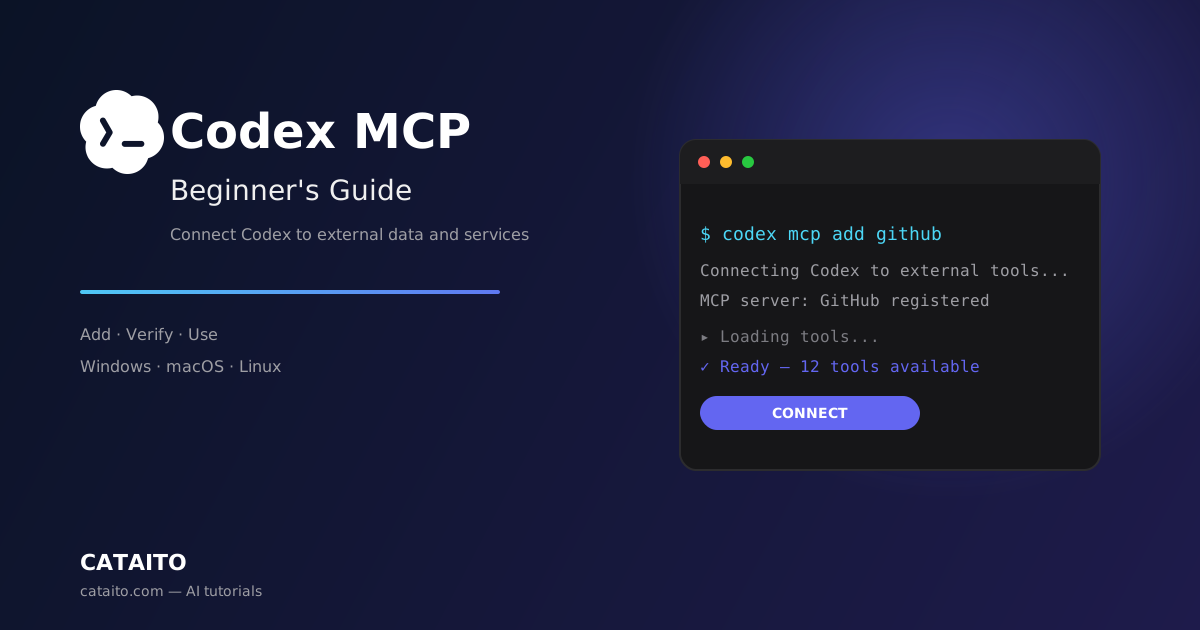

Codex CLI MCP Beginner's Guide: Connect Codex to External Data and Services
Learning Objectives
By the end of this tutorial, you will be able to:
- Explain what MCP (Model Context Protocol) is in simple terms
- Find MCP servers that connect Codex to external data and services
- Add an MCP server to Codex CLI with the
codex mcp addcommand - Verify that the MCP server is connected and working
- Ask Codex to use MCP tools in a conversation
Time needed: 15–20 minutes
Difficulty: Beginner
Which version is covered? This tutorial covers Codex CLI — the command-line version of Codex. MCP servers are configured through the codex mcp command and the ~/.codex/config.toml file. If you want the desktop app instead, see the Codex Desktop App guide.
Prerequisites
Before you begin, make sure you have:
| Requirement | Details |
|---|---|
| Codex CLI installed | codex --version should print a version number. Not installed? Follow the Codex CLI Beginner's Guide first. |
| Codex signed in | Run codex once and sign in with your ChatGPT account or API key |
| Node.js (for some servers) | Some MCP servers run via npx — download from nodejs.org (LTS version) |
| An MCP server to connect | Examples in this tutorial: GitHub, Figma, or a simple local server |
What is MCP?
MCP (Model Context Protocol) is an open standard that lets AI assistants like Codex connect to external data and services. Think of it as a universal plug: instead of every tool building its own custom integration, they all speak the same protocol.
An MCP server is a small program that exposes tools, data, or services to the AI assistant. For example:
- A GitHub MCP server lets Codex read issues, create pull requests, and browse repositories
- A database MCP server lets Codex query your database with natural language
- A search MCP server lets Codex search the web and return live results
When you add an MCP server, Codex can call its tools automatically during a conversation — no copy-pasting data by hand.
How Codex MCP Works
Codex CLI has built-in MCP support. There are two directions:
- 1Codex connects to MCP servers (the focus of this tutorial) — you add servers with
codex mcp add, and Codex can use their tools in conversations. - 2Other tools connect to Codex — the
codex mcp-servercommand exposes Codex to other MCP clients (advanced, covered briefly in the FAQ).
The configuration lives in ~/.codex/config.toml, in a section called [mcp_servers.*]. The codex mcp command edits this file for you.
Step 1: Check Your MCP Setup
First, confirm Codex CLI supports MCP on your system. Open a terminal and run:
codex mcp list
What you should see: A message like "No MCP servers configured" (or a list if you already added some). If the command is not recognized, update Codex CLI:
npm install -g @openai/codex
What you should see: A version number printed after the update finishes.
Step 2: Find an MCP Server
MCP servers are published in several places:
- MCP directory on Cataito: browse /mcp — 55+ curated MCP servers from GitHub, Figma, databases and more
- GitHub: search for
mcp-server— thousands of community servers exist - npm: many servers install with
npx
For this tutorial, we will connect the **GitHub MCP server** — one of 55+ MCP servers curated on Cataito, which lets Codex read repositories, issues, and pull requests.
If you prefer a different service (Figma, Slack, a database), the same codex mcp add command works — just swap the server name and command.
Step 3: Add the MCP Server (macOS and Linux)
On macOS and Linux, open a terminal and register the GitHub MCP server:
codex mcp add github -- npx -y @modelcontextprotocol/server-github
What you should see: The command completes without error, and Codex writes the server entry to ~/.codex/config.toml.
Step 3: Add the MCP Server (Windows)
On Windows, open PowerShell and register the GitHub MCP server:
codex mcp add github -- npx -y @modelcontextprotocol/server-github
What you should see: The command completes without error, and Codex writes the server entry to your config file (%USERPROFILE%\.codex\config.toml).
Step 4: Verify the Server Is Connected
Confirm the server was registered correctly:
codex mcp list
What you should see: github appears in the list of configured MCP servers.
You can also inspect a single server:
codex mcp get github
What you should see: The server details, including the command Codex will run to start it.
Step 5: Use MCP Tools in a Conversation
Now start a Codex session and ask it to use the GitHub tools:
codex
Then type a prompt that uses the connected service, for example:
List the open issues in the facebook/react repository
What you should see: Codex calls the GitHub MCP server's tools automatically, fetches the data, and summarizes it for you. You do not need to configure anything else — MCP tools are available to Codex in every session once the server is added.
Step 6: Remove or Disable a Server (Optional)
If you no longer need a server, remove it:
codex mcp remove github
What you should see: The server disappears from codex mcp list.
To keep the entry but stop Codex from loading it, comment it out in ~/.codex/config.toml with a # at the start of the line.
Troubleshooting
| Problem | Cause | Fix |
|---|---|---|
codex: command not found | Codex CLI not installed | Install it: npm install -g @openai/codex, then restart your terminal |
mcp is not a valid subcommand | Outdated Codex CLI | Update: npm install -g @openai/codex |
url is not supported for stdio error | A server entry uses HTTP transport but lacks the transport type | Edit ~/.codex/config.toml and add transport = "streamable_http" to that server's section, or remove the entry and re-add with the correct flags |
| MCP server starts but tools fail | Server needs an API key or token | Check the server's README for required environment variables (e.g. GITHUB_TOKEN), set them, then restart Codex |
npx: command not found | Node.js not installed | Install Node.js LTS from nodejs.org, then restart your terminal |
| Server times out on first call | First run downloads the package | Wait a moment and try the prompt again |
FAQ
Do I need a paid plan to use MCP with Codex? No. MCP support is part of Codex CLI and works with both ChatGPT plans and API-key authentication.
Can I use MCP servers with a different model? Yes — MCP tools are available regardless of which model Codex uses.
Where is the MCP configuration stored? In ~/.codex/config.toml (macOS/Linux) or %USERPROFILE%\.codex\config.toml (Windows), under [mcp_servers.*] sections.
Can I add a server for just one project? Yes — recent Codex versions support codex mcp add --scoped <name> -- <command> to write the server to the project's .codex/config.toml instead of the global one.
Can other tools use Codex through MCP? Yes — run codex mcp-server to expose Codex CLI as an MCP server to other MCP clients (such as Claude Code or Cursor). This is an advanced use case; see the Codex documentation for details.
Next Steps
- Try a database MCP server to query data with natural language
- Explore the official MCP directory for servers that fit your workflow
- Learn more Codex CLI commands in the Codex CLI Beginner's Guide
- Use the Codex Desktop App guide if you prefer a graphical interface